
Beyond the Play Store: Common Android System WebView Glitches and How to Clean Install It
Are your Android apps constantly crashing? Learn what Android System WebView is and follow our step-by-step troubleshooting guide to perform a clean installation.
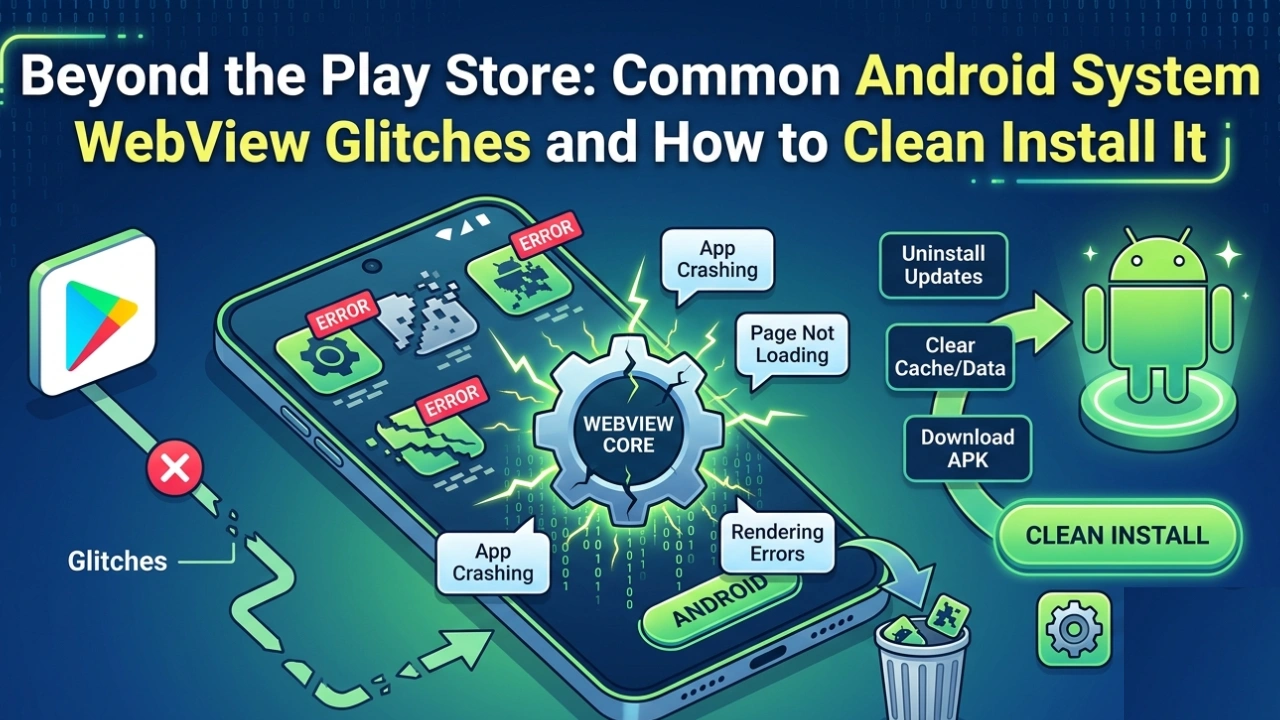
How to Fix Android System WebView Crashes
For the vast majority of Android users, smartphone maintenance begins and ends with the Google Play Store. When an application misbehaves, lags, or crashes, the standard response is to open the store, check for an update, or perform a quick reinstall. While this workflow resolves basic app hiccups, there is a hidden, foundational engine running inside your Android operating system that dictates how almost every single modern app renders data: Android System WebView.
When this critical system component glitches, it triggers a catastrophic domino effect across your entire device. Suddenly, your Gmail won’t open, your banking apps crash instantly upon launch, and your favorite social media feeds refuse to load. To the average user, it looks like a dozen different apps have broken simultaneously. In reality, it is just a single core utility screaming for a clean installation.
In this exhaustive troubleshooting guide, we will break down exactly what Android System WebView does, analyze the most common glitches associated with it, and walk you through a bulletproof, step-by-step method to perform a clean installation to restore your phone’s stability.
What Exactly is Android System WebView?
Before jumping into the fixes, it is crucial to understand the role this component plays in your smartphone’s ecosystem. Think of Android System WebView as a mini, headless version of the Google Chrome browser embedded directly into the Android OS framework.
In the early days of mobile development, if an app developer wanted to show a webpage within their application (for example, opening a terms-of-service link or a digital shop inside a game), they had to write a massive amount of custom code to build a primitive web browser from scratch. This made apps incredibly heavy, unoptimized, and insecure.
To solve this, Google introduced Android System WebView. It allows third-party developers to safely embed a pre-built web rendering engine directly into their apps. When you tap a link inside Twitter, read an in-app article, or log into a portal via a secure web frame, you aren’t actually leaving the app—WebView is doing the heavy lifting behind the scenes. Because it is so deeply integrated, any instability in WebView immediately cripples the host applications relying on it.
Common Android System WebView Glitches You Might Encounter
WebView issues rarely present themselves with a clear label. Instead, they masquerade as independent application failures. Here are the most common symptoms that point directly to a corrupted WebView system file:
-
The Synchronized App Crash: Multiple unrelated apps (like Amazon, Outlook, and Spotify) close automatically within seconds of being opened.
-
The Black/White Screen Freeze: When triggering an in-app browser link or payment gateway, the screen turns entirely white or black, failing to pull up the page elements.
-
Play Store Update Gridlock: The Google Play Store gets stuck in a permanent loop while trying to update Chrome or WebView, rejecting all other app updates.
-
System UI Lag: Opening side-menus or web-based navigation panels inside apps causes severe frame drops and sluggish scrolling.
The Master Troubleshooting Guide: How to Clean Install Android System WebView
If your phone is experiencing these frustrating symptoms, clearing standard app data won’t cut it. You need to strip down the corrupted updates and execute a pristine, clean reinstallation of the component. Follow these seven methods sequentially to resolve the issue permanently.
Step 1: Force Stop the WebView Background Processes
Before you can modify or uninstall system components, you must ensure that no active applications are utilizing the background engine. Forcing a system-wide halt stops the corruption loop.
-
Navigate to your smartphone’s main Settings app.
-
Go to Apps (or Apps & Notifications depending on your device UI) and tap See all apps.
-
Tap the three dots in the top-right corner and select Show system (if WebView isn’t visible by default).
-
Scroll down to find Android System WebView and tap it.
-
Tap the Force Stop button to cut off its active memory cycle.
Also read: Why Your Android Phone Is Lagging
Step 2: Clear Storage and Wipe the Corrupted Cache
Wiping the cache removes temporary compilation logs that may have broken during a sudden network disconnection or minor power drop.
-
Inside the WebView app info page, tap on Storage & cache.
-
Tap Clear Cache to wipe out temporary diagnostic data.
-
Next, tap Clear Storage (or Clear Data). Confirm the prompt. Don’t worry—this will not delete your photos, contacts, or app accounts; it simply resets WebView to its factory defaults.
Step 3: Uninstall Faulty System Updates
Since WebView is a core system component, you cannot completely delete the entire app from your phone. However, you can strip away all subsequent software updates and revert it to the base version that originally shipped with your Android version.
-
On the Android System WebView app info screen, look at the top right corner.
-
Tap the three vertical dots menu icon.
-
Select Uninstall updates.
-
A system warning will pop up asking if you want to replace this app with the factory version. Tap OK to confirm.
Step 4: Purge Google Chrome Cache to Prevent Conflicts
Because Android System WebView and Google Chrome share the exact same Chromium source architecture, a corrupted cache file inside Chrome can actively prevent WebView from updating or running smoothly.
-
Go back to Settings > Apps > See all apps.
-
Locate Google Chrome from the list and select it.
-
Tap Force Stop, then navigate to Storage & cache.
-
Tap Clear Cache. This eliminates any cross-application data conflicts.
Apps constantly closing down or freezing on a white screen? 🛑
It’s likely a corrupted #AndroidSystemWebView error, not a broken phone. Learn how to perform a deep system purge and fresh clean install to restore your phone’s stability instantly. 🛠️https://t.co/asaybvFPdt— genxsoft (@genxsoftinfo) June 4, 2026
Step 5: Execute the Clean Reinstallation via Play Store
Now that your system has been completely purged of corrupted temporary files and rolled back to factory settings, it is time to build a clean connection with Google’s distribution servers.
-
Restart your smartphone to clear out any residual hardware cache memory.
-
Once your device reboots, open the Google Play Store.
-
Search for Android System WebView in the top search bar.
-
Open the official app page by Google. You should now see an Update or Install button.
-
Tap Update and wait for the download to finish completely without minimizing the store window.
Step 6: Verify and Enable WebView Execution
On certain Android skins, rolling back system updates manually switches off the component’s execution flag. We must make sure the operating system recognizes the fresh install.
-
Go to Settings > System > Developer options. (If you don’t have this enabled, go to Settings > About phone and tap “Build number” 7 times).
-
Look for the setting labeled WebView implementation.
-
Open it and ensure that Android System WebView is actively selected as the primary system mechanism.
My Final Thoughts: Prevention Tactics
To ensure that your Android System WebView remains stable and doesn’t trigger future “Low Value Content” flags on app frameworks, always make sure to update Chrome and WebView at the exact same time. Keeping these two twin engines running on synchronized software versions ensures zero background configuration clashes, keeping your smartphone lightning-fast and error-free.