
Why Your Android Phone Is Lagging (And How to Make It Fast Again)
Is your Android smartphone freezing or running slow? Discover 5 simple, effective steps to clear junk, optimize RAM, and make your phone fast again.
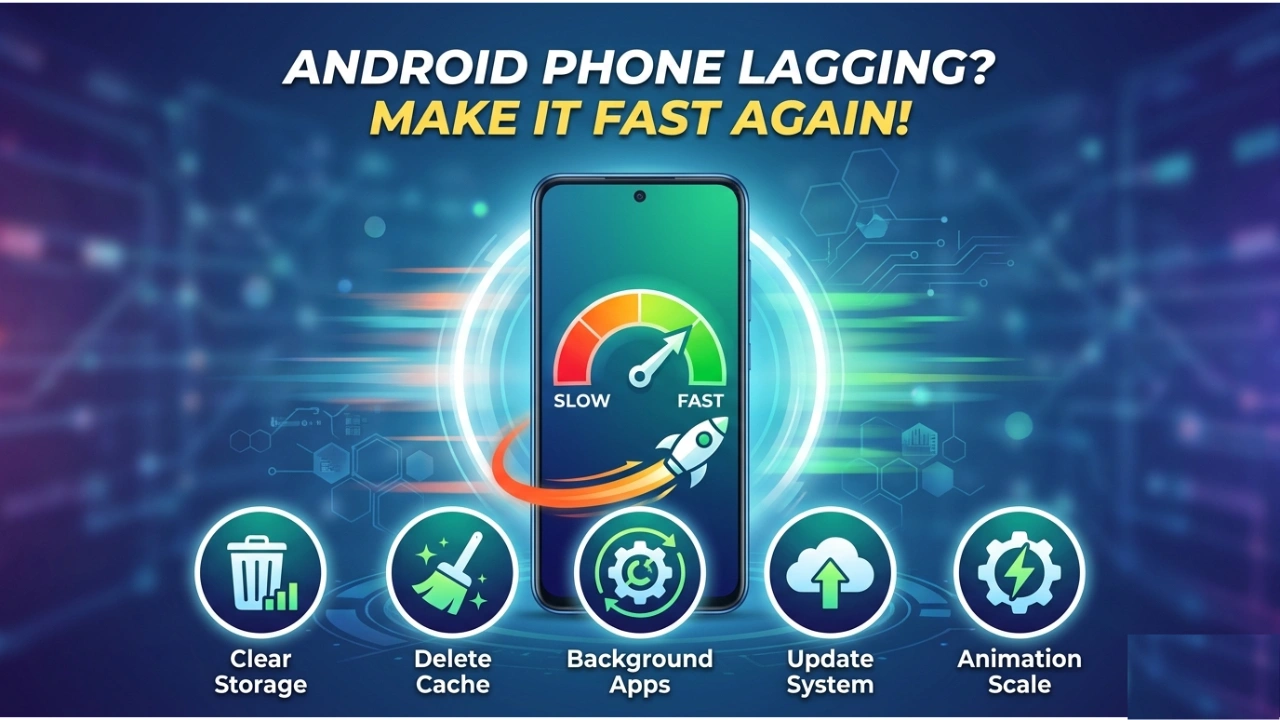
how to fix android phone lagging
How to Fix Android Phone Lagging: We have all been there. You are in the middle of typing an urgent text, navigating through Google Maps, or trying to snap a quick photo, and your phone just freezes. The screen stops responding, the apps take forever to load, and your frustration levels hit the roof.
When a smartphone starts lagging, most people assume that the hardware is getting old and it is time to spend money on a new one. But hold on before you open Amazon or Flipkart. More often than not, a slow phone is caused by cluttered software, not dying hardware.
In this guide, we will look at 5 simple, practical ways to clean up your Android system and bring that out-of-the-box speed back.
1. Give Your Storage Room to Breathe (The 20% Rule)
Think of your phone’s internal storage like a physical desk. If it is piled high with old papers, trash, and random items, you won’t have room to actually get any work done. Your phone’s processor needs free space to create temporary files while running apps. If your storage is 90% full, it will crawl.
-
What to do: Go to your phone’s Settings > Storage.
-
Take a hard look at your app drawer. If there are apps or games you haven’t opened in the last two months, uninstall them immediately.
-
Clean out your WhatsApp media folder—delete those heavy video forwards. As a golden rule, always keep at least 20% of your internal storage completely empty.
2. Clear App Cache (The Hidden Junk)
Every time you scroll through Instagram, watch a video on YouTube, or browse the web on Chrome, these apps save tiny pieces of data so they can load faster the next time. This is called Cache Data. While it helps initially, over months, this junk builds up into gigabytes of data that conflict with your system.
-
How to fix it: Go to Settings > Apps > Manage Apps.
-
Select your most-used apps (like Chrome, Instagram, or Facebook), tap on Storage, and hit Clear Cache.
-
Note: Make sure you tap ‘Clear Cache’ and not ‘Clear Data’, otherwise you will be logged out of your apps.
3. Tame Your Background Apps
Many apps keep running silently in the background even after you close them. They constantly sync data, fetch location updates, and eat up your phone’s RAM. If your RAM is constantly maxed out by background apps, the app you are currently trying to use will lag.
-
What to do: Go to your Settings > Battery or Apps and look at background auto-start permissions.
-
Turn off auto-start for apps that don’t need to run 24/7 (like shopping or food delivery apps).
-
You can also turn off Auto-Sync for email accounts or cloud services that you don’t need updated every single second.
4. Don’t Postpone System Updates
It is easy to hit “Remind me later” when a software update notification pops up, especially if you are low on mobile data. However, skipping updates is a major reason why phones slow down. Developers constantly release updates to fix optimization issues, patch bugs, and improve compatibility with newer apps.
-
What to do: Connect to a stable Wi-Fi network, go to Settings > About Phone > System Update, and install any pending updates.
-
Additionally, open the Google Play Store once a week, go to your profile, and update all your installed apps.
Also read: 5 Clear Signs It’s Time to Replace Your Smartphone
5. The Animation Trick of How to Fix Android Phone Lagging (Make Your Phone Feel Instant)
If your phone hardware is a bit older, there is a hidden Android setting that doesn’t actually change the processor speed, but it completely removes the visual delay when opening menus and switching apps, making the interface feel lightning-fast.
-
How to do it:
-
Go to Settings > About Phone and tap on the Build Number (or your OS version name) 7 times continuously. You will see a popup saying “You are now a developer.”
-
Go back to the main Settings menu, search for Developer Options, and open it.
-
Scroll down until you find three settings: Window Animation Scale, Transition Animation Scale, and Animator Duration Scale.
-
By default, they are set to
1x. Change all three of them to0.5x(or turn them off completely). -
Try navigating back to your home screen now. You will notice that menus pop up instantly without any slow fading effects.
-
“Is your Android phone lagging? 📱 Before you think about buying a new one, try clearing your app cache and reducing your animation scales to 0.5x in Developer Options. Huge performance booster! Read our full guide at https://t.co/KrKZbKyq9f“
— genxsoft (@genxsoftinfo) May 31, 2026
Frequently Asked Questions (FAQs)
Q1: Will clearing the app cache delete my personal photos, videos, or WhatsApp chats?
Answer: No, not at all. Clearing the cache only removes temporary files that apps use to load a bit quicker. Your personal data, photos, downloaded videos, and chat histories are completely safe. It is entirely different from “Clear Data,” which resets the app back to its factory state.
Q2: How much free space should I ideally keep on my Android device?
Answer: You should always try to keep at least 15% to 20% of your total internal storage empty. For example, if you have a 128 GB phone, try to keep around 20 GB to 25 GB free. This gives the Android operating system enough breathing room to run background tasks without choking the processor.
Q3: Does changing the animation scale to 0.5x harm my phone’s hardware or battery?
Answer: No, it is completely safe. Changing the animation scale inside the Developer Options does not overclock your processor or drain your battery. It simply reduces the visual transition time when opening and closing apps, making the user interface look and feel much more responsive.
Q4: My phone still lags even after trying all these steps. What should I do next?
Answer: If your phone remains incredibly slow after optimizing storage and cache, a rogue background app or a deeper software glitch might be causing it. In such cases, back up all your important data to Google Drive or a computer and perform a Factory Data Reset. This wipes the phone clean and reinstalls a fresh version of the operating system.
Conclusion
Smartphone hardware is stronger than ever, but it still requires regular maintenance. Just like humans need a good night’s sleep to reset, smartphones need a fresh start too. Make it a habit to Restart (Reboot) your phone at least once a week. It flushes the RAM, closes stubborn background freezes, and fixes minor system glitches automatically.
Give these 5 optimization steps a try before you think about upgrading your device. You might just save yourself a lot of cash, keep your device out of a landfill, and get that snappy performance back instantly.