Setting Up Out-of-Office Messages in Outlook 2010

How to Setup Out-of-Office Messages reply in Outlook 2010
1. Start your setup.
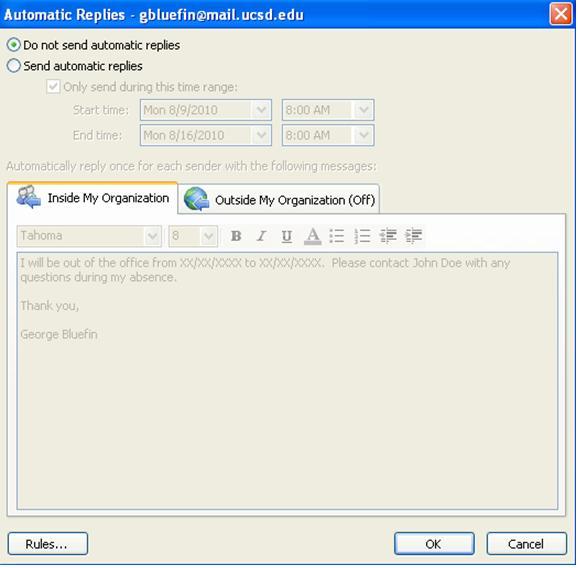
- In Outlook, click on File, Info then select Automatic Replies (Out of Office).
- Click on Send Automatic Replies and check the Only send during this time range check box.
- Specify a start and end time for the reply to activate and deactivate using the Start time and End time fields.
- Enter a message in the Inside My Organization field. This message will be sent to internal UCSD email addresses.

2. Auto reply to external email addresses.
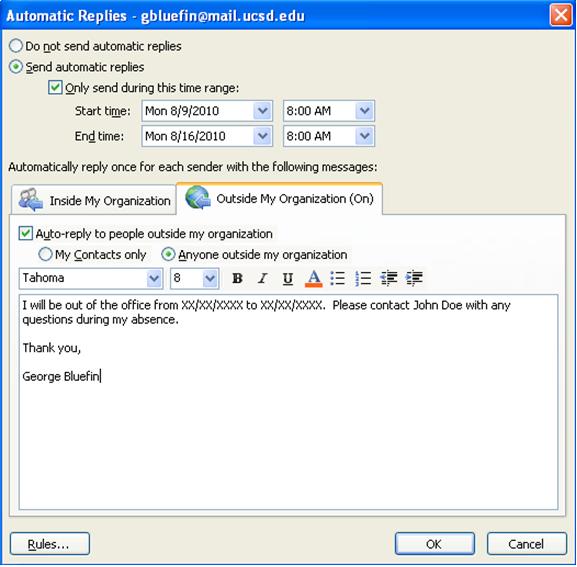
- Click on the Outside My Organization tab.
- Make sure Auto-reply to people outside my organization is checked.
- Enter the message that will be sent to external (non-UCSD) email addresses.
- Click on OK.
3. Deactivate out-of-office automatic replies.
- Click on File, Info, then Automatic Replies.
- Click on Do not send automatic replies.
- Click OK.